Desktop UI, Quick Panel & Shortcuts
SemSearch provides a streamlined, keyboard-first desktop experience built with PySide6: a dynamic System Tray Icon, a Spotlight-style Floating Quick Search Panel with grouped results, an Interactive Multimodal Preview Pane, and Deep-Link Desktop Actions.
1. Dynamic System Tray Icon (gui/tray.py)
SystemTrayManager renders a custom \(64 \times 64\) antialiased QPixmap in memory using QPainter (render_tray_icon) that reflects the real-time state of IndexService:
| State | Visual Indicator | Tooltip / Menu Status |
|---|---|---|
| Idle | Brand purple-blue magnifying glass icon | SemSearch - Idle - {N} indexed |
| Indexing | Circular dark track with animated green progress arc (0%–100%) and center dot |
SemSearch - Indexing: {percent}% ({indexed}/{total}) |
| Paused | Amber circle with dual vertical pause bars | SemSearch - Paused |
To minimize background CPU and SQLite overhead while idle, SystemTrayManager caches the last rendered state tuple (_last_rendered_state) and IndexService.get_status() skips database COUNT(*) queries when EngineActivity.IDLE is active.
Tray Interactions
- Left-Click: Immediately opens and focuses the floating Quick Search Panel.
- Right-Click Context Menu:
- Status indicator line (read-only)
- Quick Search: Opens the floating search panel.
- Pause Indexing / Resume Indexing: Manually pauses or resumes background indexing.
- Settings...: Opens the 4-tab Settings dialog.
- Quit: Stops background threads cleanly and exits SemSearch.
2. Floating Quick Search Panel (gui/panel.py)
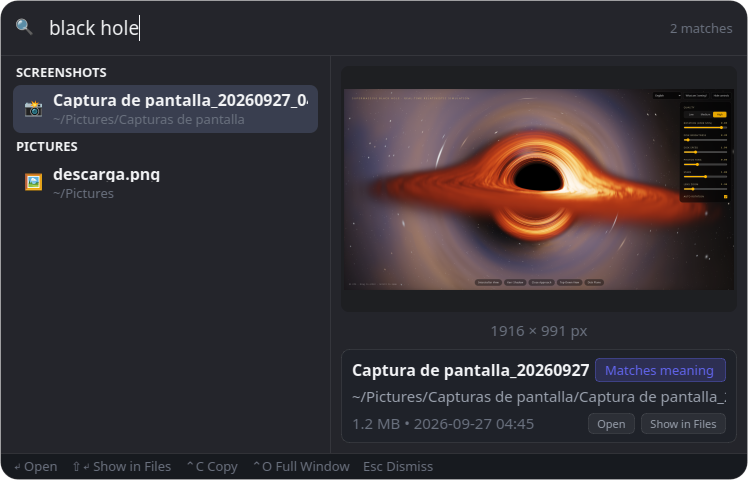
Pressing Ctrl+Shift+Space (or running semsearch --panel) summons a frameless, centered floating search bar (900px wide) that expands smoothly into a two-column view with grouped search results on the left (340px) and a live multimodal preview pane on the right (560px).
Two-Stage Instant + Semantic Retrieval
- Instant Lexical Pass (
_execute_instant_lexical): As you type, SemSearch immediately queries the SQLite FTS5 index (with automatic prefix fallback) so exact keyword and filename matches appear with zero latency. - Debounced Hybrid Semantic Pass (
SearchWorker): After a 120 ms typing pause, a backgroundQThreadworker runs the full hybrid vector + lexical ranking pipeline (SearchService.search) and updates the grouped results and match counter ({count} matches).
Grouped Results & Location Badges
- Category Grouping: Primary ranked results (
result_set.ranked) are organized under uppercase category headers (DOCUMENTS,PDF DOCUMENTS,SCREENSHOTS,PICTURES,AUDIO,MEDIA,CODE). - Compact Location Badges (
format_hit_place_badge): Each result row (ResultItemWidget) displays a file type icon, an elided filename (ElidedLabel), an elided tilde-formatted parent path (~/...), and a context-specific location badge: - PDFs:
p. {page}(matched page number) - Audio / Video:
M:SS(matched timestamp) - Source Code:
L{line}(matched symbol definition or focus line) - Folded Weaker Matches: Lower-scoring hits (
score < 0.5 * top_score) are neatly folded into an expandable{arrow} {count} weaker matchesrow at the bottom of the list, toggleable via mouse click or Enter. - Automatic Focus & Memory Reclamation: Clicking outside the panel (
WindowDeactivate) or triggering an action automatically dismisses the panel, releases cached preview pixmaps/documents, and callsDatabase.shrink_memory()onindex.sqliteandcode.sqlite.
Quick Search Panel Keyboard Shortcuts
| Shortcut | Action |
|---|---|
| Ctrl + Shift + Space | Toggle the Quick Search Panel from anywhere on the desktop |
| ↑ / ↓ | Navigate up and down through ranked search results (and weaker matches toggle) |
Enter (↵) |
Open selected result at the exact PDF page, media timestamp, or code line |
Shift + Enter (⇧↵) / Ctrl + Enter |
Reveal and highlight the file in your system file manager |
Ctrl + C (⌃C) |
Copy the file (file:// URI) to the system clipboard |
| Esc | Clear the search input (collapsing the panel) or dismiss the panel if empty |
3. Interactive Multimodal Preview Pane (gui/preview.py)
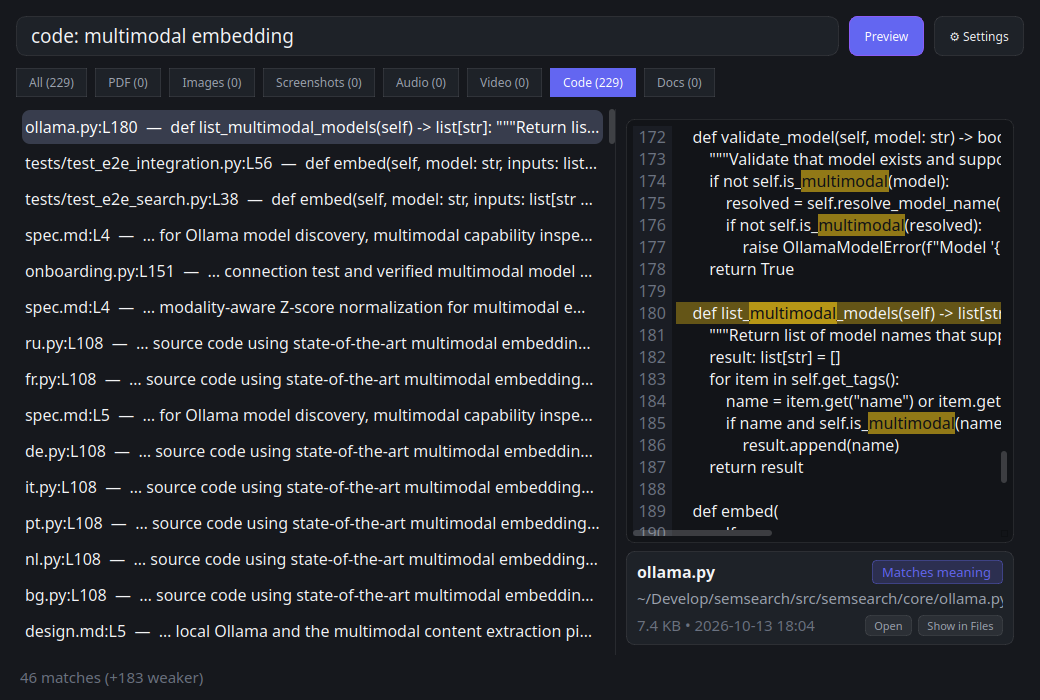
Selecting any result in the Quick Search Panel populates the right-hand PreviewPane with a specialized viewer tailored to the file's modality, paired with a bottom MetadataCard showing the filename, match reason badge (Matches meaning, Matches words, or Matches name), file size, modification timestamp, and quick Open / Show in Files action buttons.
- PDF Preview (
PdfPreviewWidget): Renders the matched page (hit.loc) at1.6xzoom using PyMuPDF (pymupdf) with translucent yellow highlight rectangles (page.search_for(term)) drawn over matching query terms, plus ◀ Prev and Next ▶ page navigation controls. - Image & Screenshot Preview (
ImagePreviewWidget): High-DPI, aspect-ratio-preserving preview with smooth scaling and pixel dimension readout (width × height px). - Audio Preview (
AudioPreviewWidget): Displays a 64-bar deterministic waveform visualization (WaveformWidget) seeded by the file path, positioned at the matched timestamp (hit.loc), with an interactive scrub slider and a ▶ Play button that launches playback at the exact scrubbed second. - Video Preview (
VideoPreviewWidget): Extracts the actual video frame at the matched timestamp (hit.loc) on the fly viaffmpeg(_extract_video_frame), overlays a play badge, and provides a scrub bar and ▶ Open at Moment button. - Source Code & Document Preview (
CodePreviewWidget): - Source Code: Renders in a read-only
CodeEditorwith a dynamic line-number gutter (LineNumberGutter), nowrap formatting, a full-width yellow highlight on the target symbol/focus line (hit.focusorhit.loc), and yellow highlights on all occurrences of the query terms. - Text & Rich Documents (
.docx,.odt,.rtf,.html,.txt,.md): Extracts clean text (viaread_doc_text), enables word wrapping, highlights all query terms in yellow, and automatically scrolls and centers the viewport on the first query match or matched segment excerpt.
4. Deep-Link Desktop Actions (services/actions.py)
When you press Enter or double-click a result, execute_hit_action() opens the file at the exact matched location using installed Linux desktop applications:
| File Kind | Deep-Link Action | Supported Applications & CLI Flags |
|---|---|---|
Source Code (CODE) |
Opens file at exact symbol/match line (hit.focus or hit.loc) |
VS Code (code -g path:line), Cursor (cursor -g path:line), Zed (zed path:line), Sublime Text (subl path:line), JetBrains IDEs (pycharm/idea/clion/webstorm/goland/rustrover/rider --line line path), fallback xdg-open |
PDF (PDF) |
Opens PDF at exact matched page (hit.loc) |
Okular (okular -p page), Evince (evince -p page), Zathura (zathura -P page), fallback xdg-open |
Audio / Video (AUDIO, VIDEO) |
Starts playback at exact matched timestamp (hit.loc seconds) |
mpv (mpv --start=sec), VLC (vlc --start-time=sec), fallback xdg-open |
| Reveal in File Manager | Highlights the file in its parent folder | org.freedesktop.FileManager1.ShowItems via dbus-send, Dolphin (--select), Nautilus (--select), Nemo (--select) |
| Copy to Clipboard | Copies file:// URI to clipboard |
Wayland wl-copy or X11 xclip -selection clipboard |